
It has been seven years since Apple released its last XDR Display and in that time, monitors and what to expect from them have changed a lot. Now that we finally have a new option in the Studio Display XDR, was that wait and new $3,299 price worth it?
The answer to that question is complicated, because it really will depend on what your priorities are, what work you do with your display, and if you have the coin to spend, but I can say that after testing, Apple mostly delivers on all its promises with this monitor, and there isn’t anything else quite like it on the market.
Apple Studio Display XDR Review: Design and Build Quality
As expected, the build quality of the Studio Display XDR is phenomenal. My review unit came with the integrated tilt and height adjustable stand (which costs the same as the VESA option), and it’s a robust, heavy monitor that looks great sitting next to (or, if you want, on top of) a Mac Studio. The body is the familiar brushed aluminum finish and the edges of the display are nicely rounded.
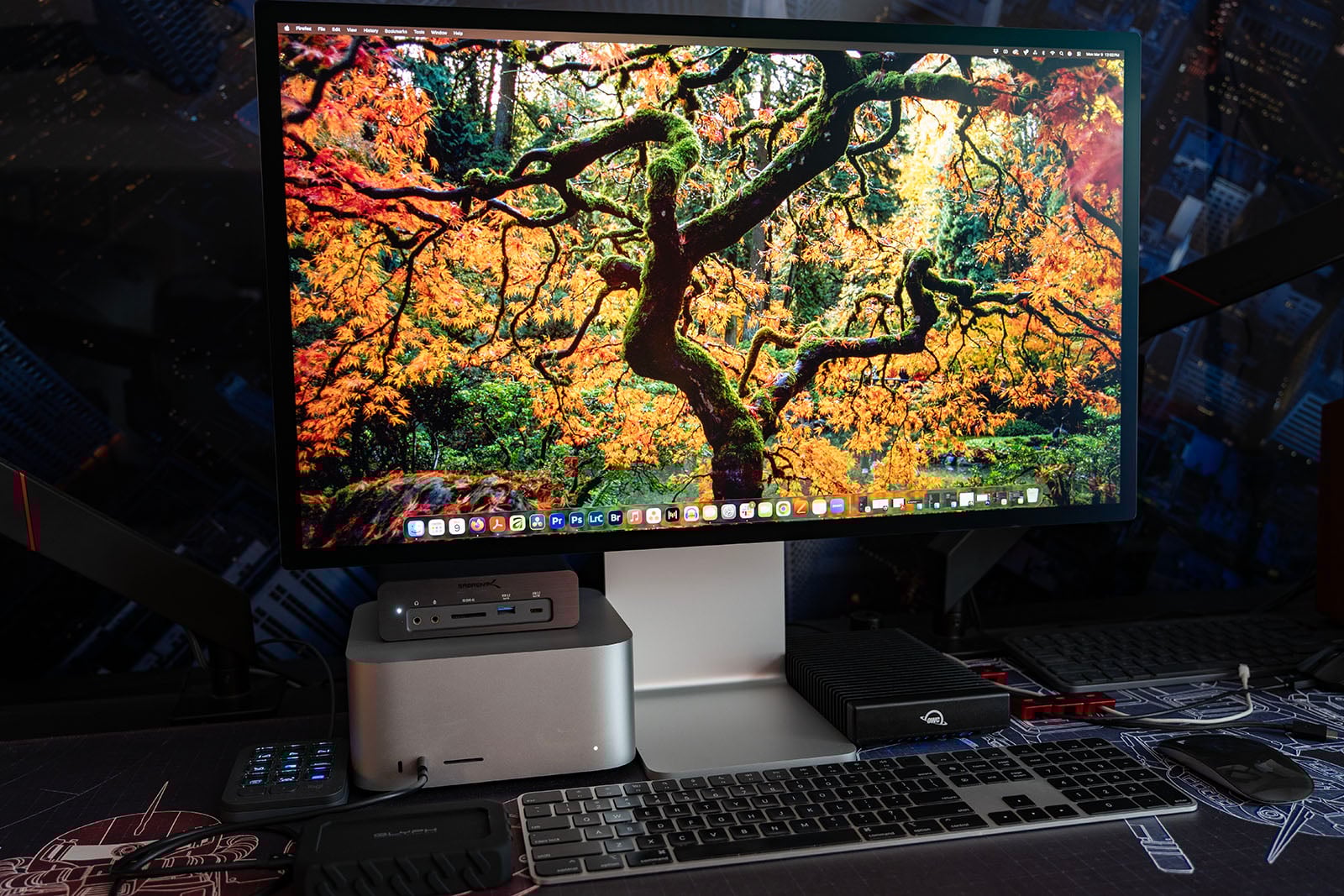
Across both the bottom and top is a row of small ventilation holes where, if you put your ear right up to them, you can barely hear the fan venting heat. That said, I would classify it, for all intents and purposes, as silent.

Apple chose to use the same integrated power cable design in the Studio Display XDR that I wasn’t a huge fan of in the original Studio Display. I don’t like integrated cables on any product, typically, and I don’t love seeing it here.
I do want to point out that the stand itself does have some rather sharp edges. I actually cut my right thumb while setting the display up as I just grazed the side of the display’s neck while trying to navigate a cable. It’s the Sigma BF of monitors, so be careful.
Let’s shift gears to the front of the display, which is the part everyone will care about the most. I don’t know why Apple still has such thick bezels on its monitors, but that remains unchanged here. The actual display area is the promised 27-inches, but there is also a 3/4-inch black border around all four sides of the LCD. I have two other monitors on my desk next to the Studio Display XDR and they both have a noticeably smaller 1/4-inch bezel on three sides, with a thicker bezel only on the bottom. There are also OLED displays on the market that have almost no bezel and just the smallest border, so Apple’s continued use of a thicker border and bezel are certainly an outlier. It doesn’t bother me much, but I can’t help but think that for the asking price, going nearly border/bezel-less would have been preferable.
The integrated tilt and height adjustable stand is very nice and can be adjusted with minimal effort — basically just a finger’s worth of pressure will move it up and down, or adjust the angle.
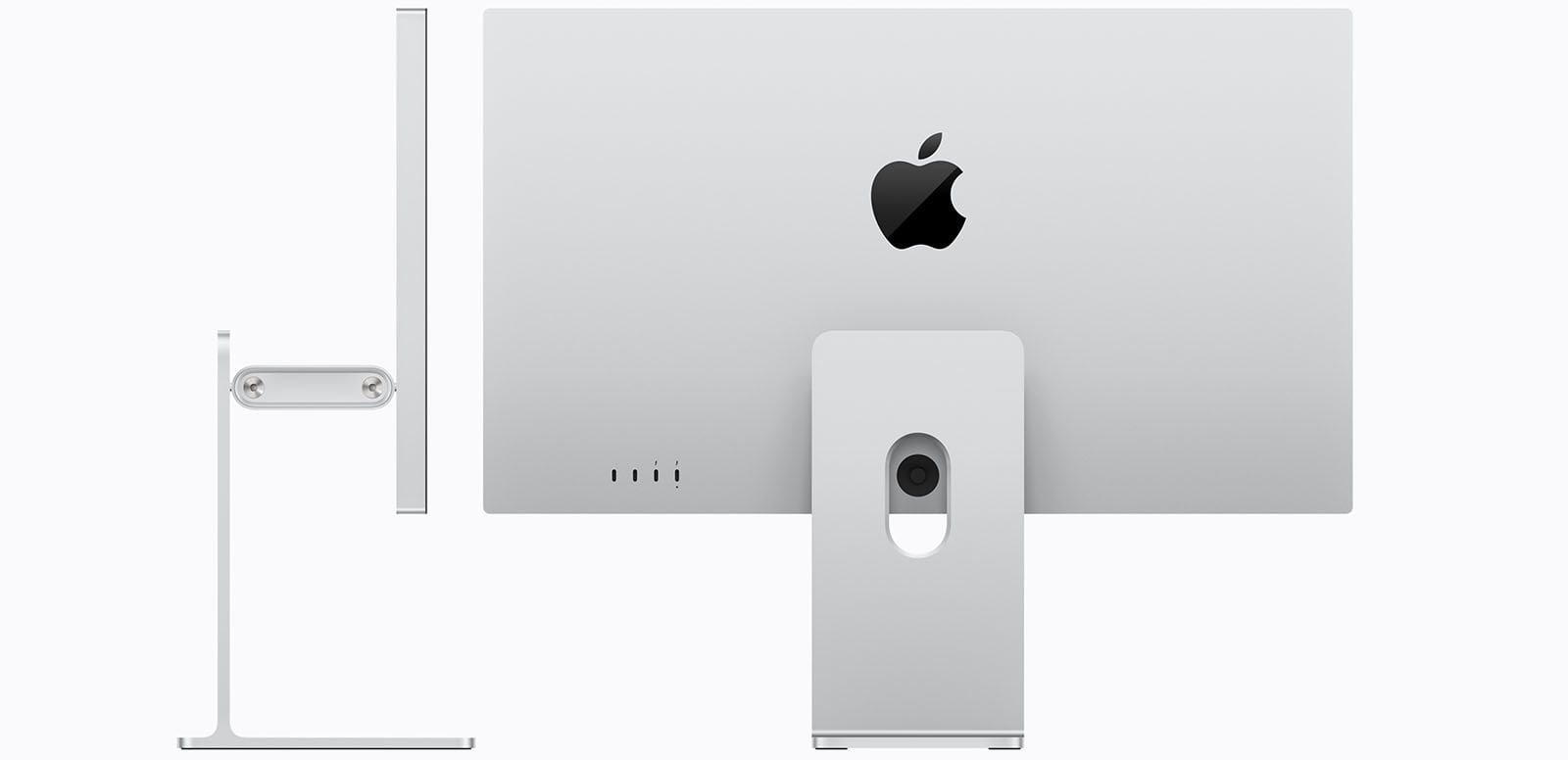
On the back are four USB-C ports, two of which are Thunderbolt 5. Combined with a Mac Studio, you’re going to have plenty of I/O. I know there are many folks who would have appreciated an HDMI and/or a DisplayPort, but it’s not really that surprising that Apple didn’t use those. It makes its displays for its products, and if you’re using a Mac that the Studio Display XDR is compatible with, you won’t care that it requires Thunderbolt.
With regard to compatibility, it is worth noting that not every Apple Silicon Mac is compatible with this display (many will cap at 60Hz, too) and full performance is also tied to Apple’s macOS. If you’re not running Tahoe, you are also locked to 60Hz. I think it’s very weird to have a monitor’s performance intrinsically tied to your computer’s software, so consider this a con.
But if you’ve got all the right components and they’re all updated, you can lock refresh rate to 120Hz or set it to be variable between 47 and 120Hz.
Apple Studio Display XDR Review: Performance
Apple didn’t really break new ground when it came to the design or build quality, so the actual display area is going to be where we’ll focus the bulk of this review. My unit features the Nano Texture glass option, which is an extra $300, so keep that in mind as we take a look at the results, as Nano Texture can negatively affect the contrast.
Apple has three built-in color reference profiles that it ships with this display — HDR Photography, Adobe RGB, Design and Print, and P3-RGB (Adobe RGB) — along with two default options. Let’s start with those two defaults, which are XDR Display P3 or XDR Display P3 + Adobe. I ran a full set of color tests on each, and the results came out basically identical (within less than a couple of percentage points difference), so you can run either of these and expect them to deliver similar results. These options allow you to get the maximum brightness out of this display (1,000 nits SDR and 2,000 nits HDR) and still maintain excellent color reproduction.
With these default modes tested right out of the box, I saw 100% sRGB, 85.7% Adobe RGB, and 98.3% DCI P3 color gamut coverages, with an average Delta E of just 0.49. This is exceptional performance, and the lowest Delta E I’ve personally ever seen across monitors and televisions, either LCD, OLED, or QD-OLED technology. Below are the coverage charts:
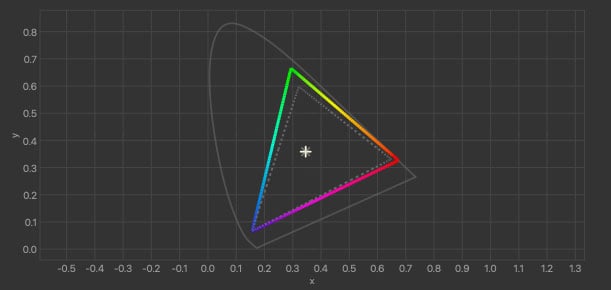
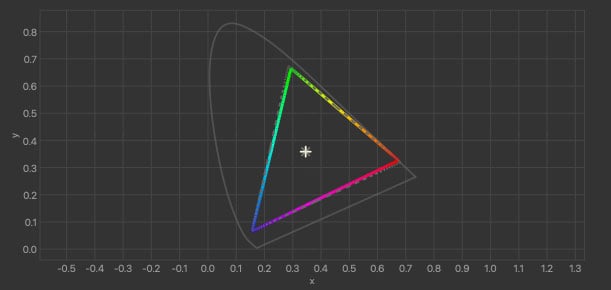
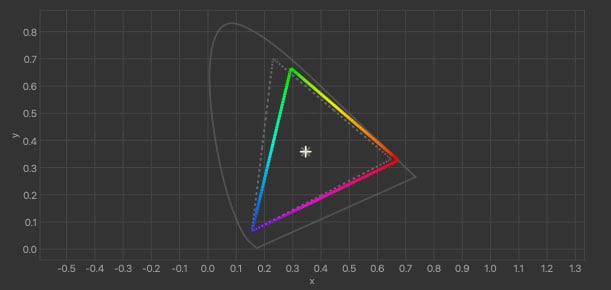
I tested these results multiple times at different brightness settings, from low to maximum output, and the results were the same every time. Having a display that can deliver this level of color accuracy at all brightness levels is, quite frankly, impressive.
Adobe RGB is the most difficult color space for monitors to cover, so I was curious what would happen when we switched over to the Adobe RGB profiles, which Apple says has a 30% larger color space than sRGB. So, hoping for the best, I tested Apple’s Adobe-optimized profile and crossed my fingers for better Adobe color gamut coverage. Unfortunately, I didn’t get anything better.
I tried multiple Adobe RGB profiles to see if any of them got gamut coverage above 86% to no avail. Despite automatically dipping the maximum brightness significantly in the Adobe RGB profile modes, the results came out basically the same as noted above every time. In my testing, it doesn’t appear possible to get better Adobe RGB coverage. This is not wholly unexpected, given how displays work, but is still disappointing.
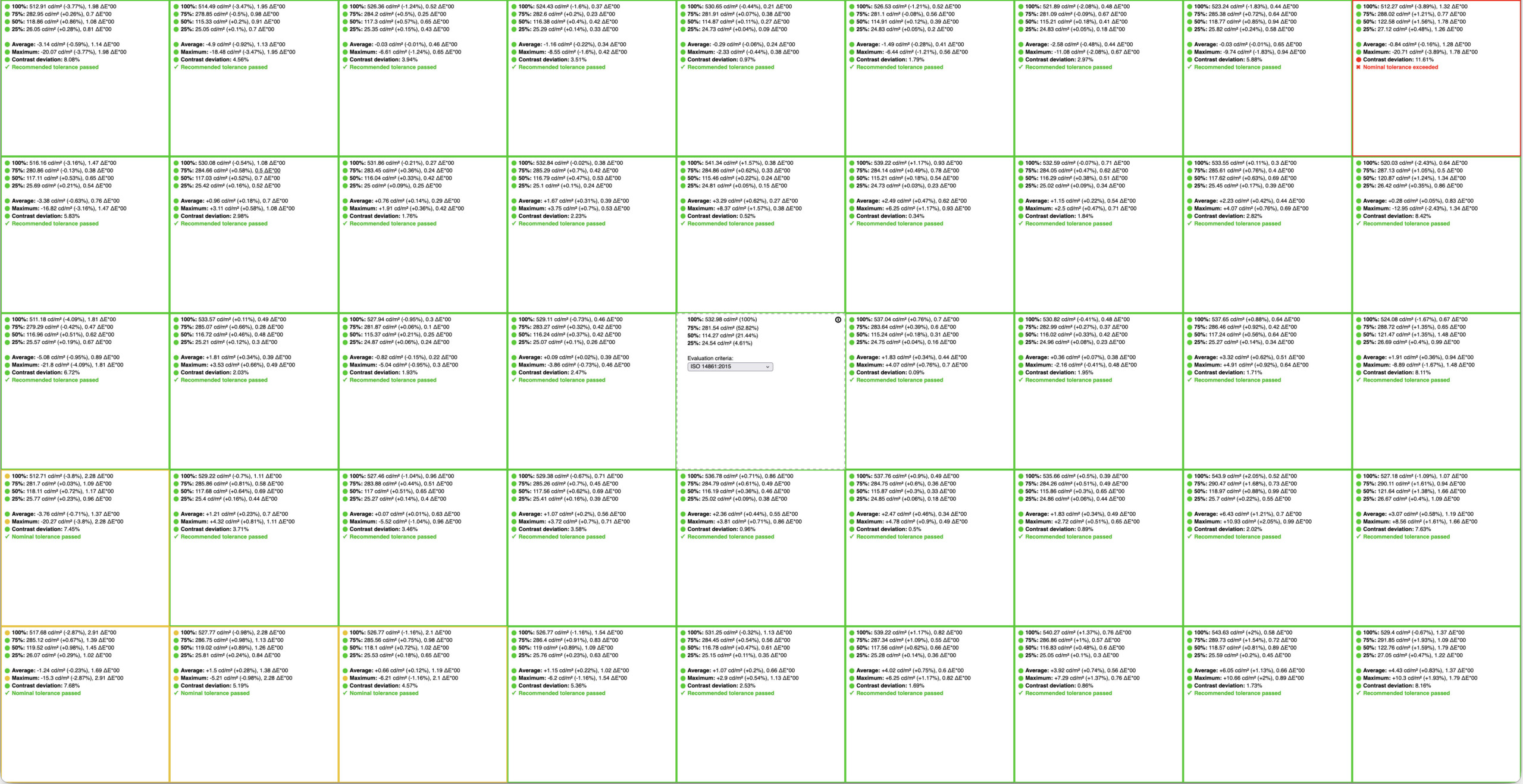
Looking at device uniformity, which I tested in the XDR Display P3 profile in our standard 9×5 arrangement, and it’s back to good news. The entire monitor looks solid except in the upper right hand corner where I saw a slightly higher than acceptable contrast deviation of 11%. The centers have a contrast deviation of between 0.09% and 2.47%, as a point of reference, but I doubt most human eyes are going to be able to tell the difference. This is an outstandingly uniform display. Bear in mind, however, that display uniformity is where we’ll typically see the most deviation among models, as each panel is going to vary slightly. As a result, your results may differ from mine.
The Studio Display XDR uses a mini-LED array of 2,304 zones. HDR content looks spectacular on this display, and I also did not see any stutter or judder. I did notice a very slight amount of halo, which is very common on all LCD displays, but it’s pretty minor. You will see a slight glow around bright objects set against dark backgrounds, but outside of captions sitting in a letterboxed area of widescreen content, actually seeing the halo is going to be uncommon. I have only seen better bloom control from an LCD display in TCL’s QM8K television, and that’s using proprietary tech.
The Studio Display XDR exhibits zero bloom. If you’re just looking at this as an entertainment display, it matches or outperforms most televisions, but still falls short of OLED and QD-OLED displays in these categories, which is expected. There are still limits to what an LCD can do.
On that note, OLED and QD-OLED will also give you better contrast and pure blacks. The Apple Studio Display XDR is still an LCD display, and while Apple does boast an impressive 1,000,000:1 contrast ratio, OLEDs have effectively infinite contrast ratio, so that is still the best technology if you care only about that. However, OLED monitors typically don’t get nearly as bright as Apple’s Studio Display XDR and have weaker uniformity. LCD technology also doesn’t risk what is colloquially referred to as “burn in” and therefore typically have longer lives versus OLEDs, so they tend to make better investments for monitors. Display technology is still a game of picking and choosing based on what is important to you, and Apple is putting on a show for what is possible with LCD technology.
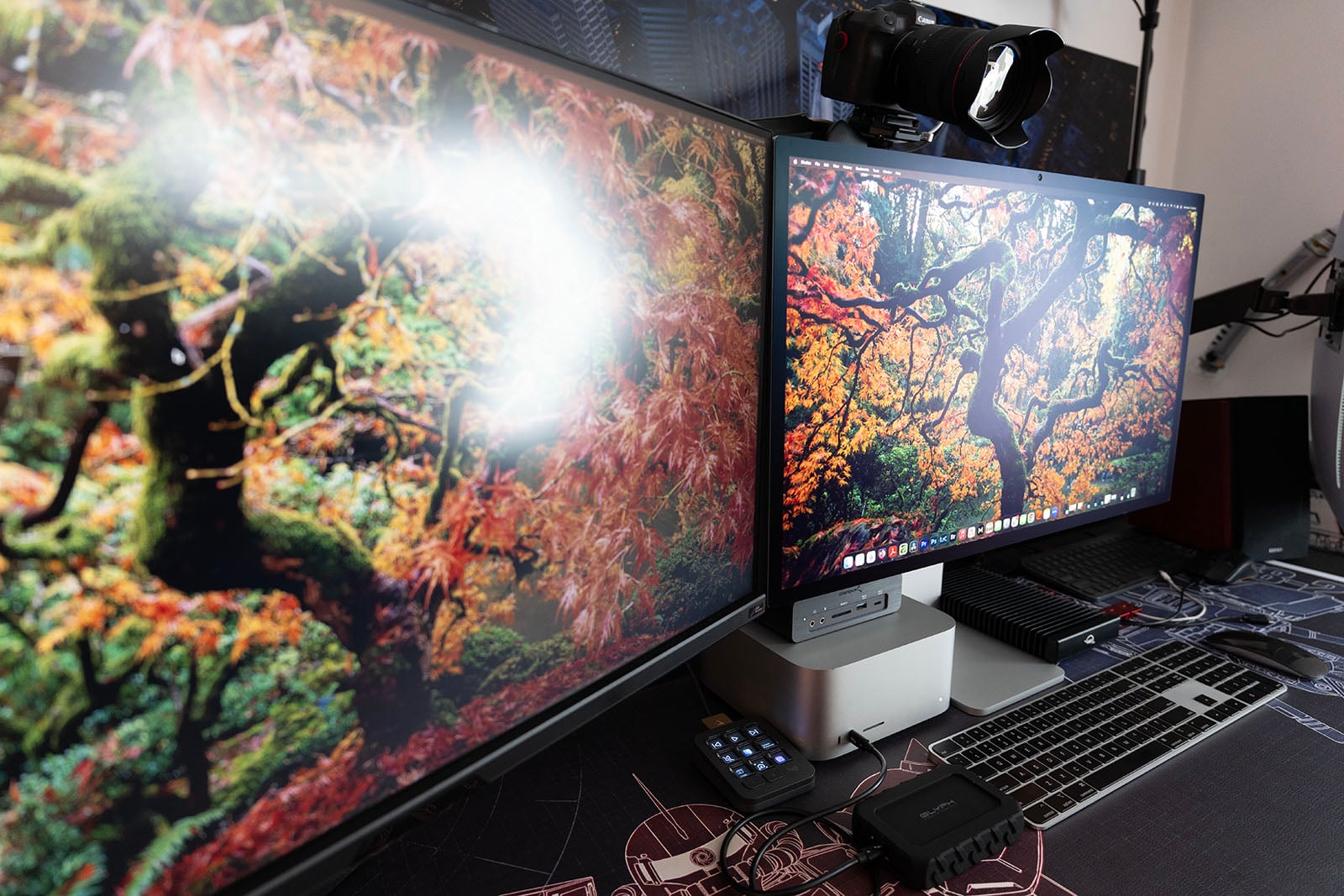
As a brief aside, the Nano Texture glass is outstanding for rejecting glare. You might not need it in your specific setup, but in my office I have a rather large light source behind and to the right of my keyboard. On my other display, that meant visible glare. With the Studio Display XDR, there is none. Some folks might not like it, but it delivers on the promise of glare prevention and does so beautifully.
Quick notes on the speakers, mic, and camera: they’re all “fine.” The speakers do a good job of projecting sound, but you can’t fight physics: the lack of space means the bass is pretty weak. Don’t expect a lot out of the lows. The mic does a good job of making your voice understandable, but it pales in comparison to a standalone mic. Of course, dedicated speakers and a dedicated microphone are going to be the better choice here, but if you’re in a bind, both of the Studio Display XDR’s built-in options will get the job done.
As for the camera, it’s the same as the other 1080p cameras from Apple. Nothing new to report here.
Apple Studio Display XDR Review: You Get What You Pay For
If you are looking at picking up an Apple Studio Display XDR, it’s because you value a few things: integration with Macs, look and feel, high performance, and lifespan. Apple asks a lot in exchange, but it delivers across all four categories. If you buy this monitor, you get what you’re paying for. It is difficult, if not impossible, to find a monitor that combines all of what Apple offers here: super bright, HDR compatible, extremely color accurate, a built-in USB-C and Thunderbolt 5 dock, and a glass panel that has the option to be very resistant to glare.
But if you aren’t using a Mac or you care more for perfect blacks and a lower price, then you can certainly find it.
There are plenty of photographers and video editors who would be perfectly served with much more affordable displays from Asus, Acer, or LG, but the sticker-shock of Apple’s Studio Display XDR isn’t actually far from what it’s value is, considering its performance and what high-end alternatives are. It’s easy to rag on Apple for being expensive, but when you look what its products in the last few years actually deliver, the Studio Display XDR included, you get what you pay for.

Are There Alternatives?
I think the best straight-up alternative to the Studio Display XDR is something like the Asus ProArt OLED display. Bear in mind, that OLED comes with compromises. The display will have to periodically reset itself to prevent “burn in” and the fan in the ProArt is noticeably loud. It also only gets half as bright as Apple’s display.
You can also look at LCD options like the Dell UltraSharp U3225QE, which has similar performance promises. That said, it doesn’t get nearly as bright as it is capped to 600 nits. As mentioned, it will be hard for you to find a perfect one-to-one alternative to Apple’s display across all of its performance metrics.
Should You Buy It?
Maybe. The Studio Display XDR is very expensive, so it’s not going to be for everyone. That said, it will last a long time and has a feature set that is unique. If you care about exactly what this monitor offers, you’ll be hard-pressed to find anything as good, let alone better.